Omnisearch for Obsidian





Omnisearch is a search engine that "just works". It always instantly shows you the most relevant results, thanks to its smart weighting algorithm.
Under the hood, it uses the excellent MiniSearch library.
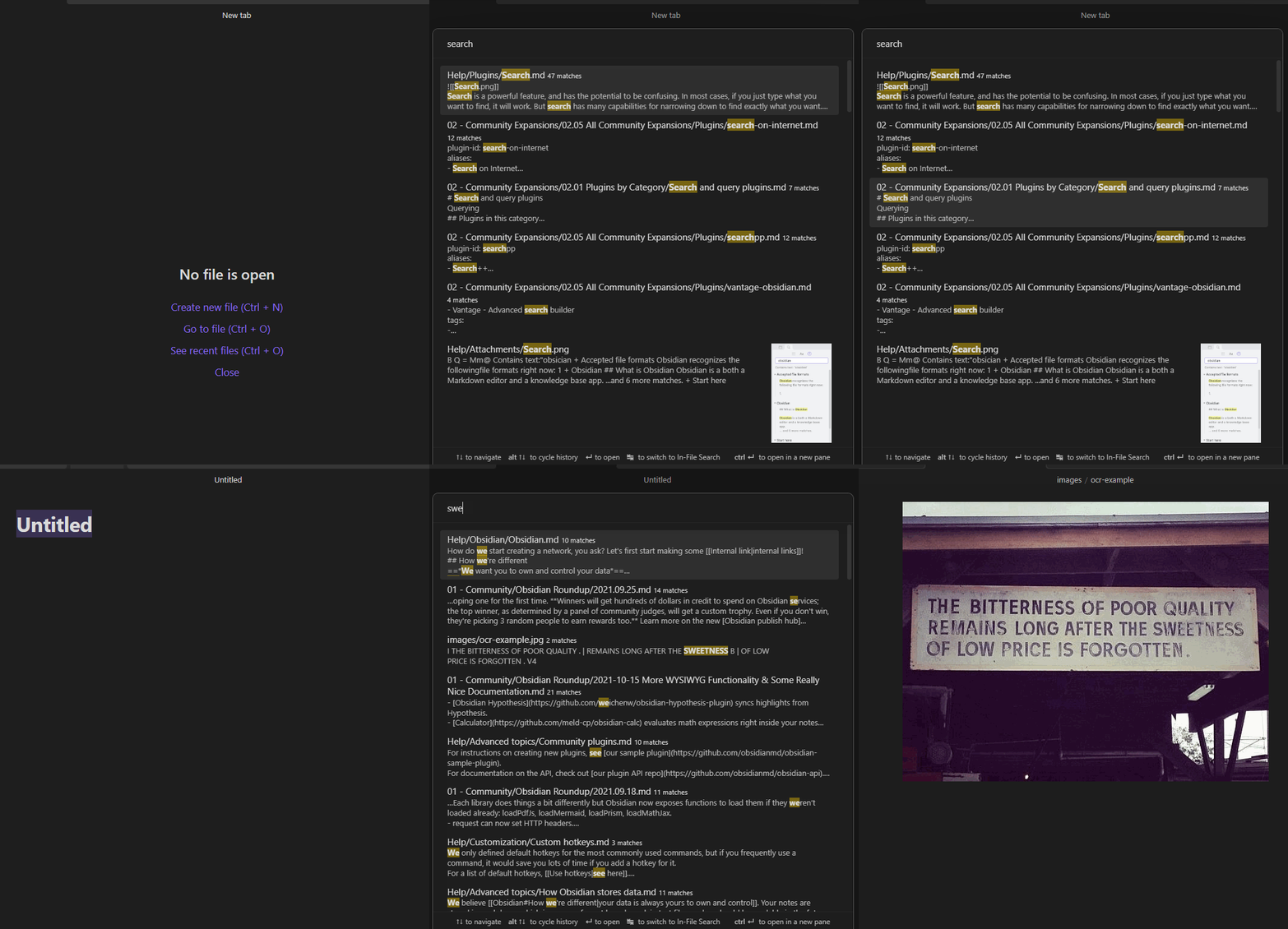
Features
- Automatic document scoring using the BM25 algorithm
- The relevance of a document against a query depends on the number of times the query terms appear in the document, its filename, and its headings
- Can search other plaintext files and PDFs (configurable in settings)
- Workflow similar to "Quick Switcher" plugins
- Keyboard first: you never have to use your mouse
- Resistance to typos
- Switch between Vault and In-file search to quickly skim multiple results in a single note
- Supports
"expressions in quotes"and-exclusions - Directly Insert a
[[link]]from the search results - Respects Obsidian's "Excluded Files" list - results are downranked, not hidden
- Optional support for Vim navigation keys (ctrl + j, k, n, p)
Note: support of Chinese, Japanese, Korean, etc. depends on this additional plugin. Please read its documentation for more information.
Installation
- Omnisearch is available on the official Community Plugins repository.
- Beta releases can be installed through BRAT. Be advised that those versions can be buggy.
You can check the CHANGELOG for more information on the different versions.
Usage
Omnisearch can be used within 2 different contexts:
Vault Search
Omnisearch's core feature, accessible with the Command Palette "Omnisearch: Vault search". This modal searches through your vault and returns the most relevant notes. That's all you need to find a note.
If you want to list all the search matches of a single note, you can do so by using tab to open the In-File Search.
In-File Search
Also accessible through the Command Palette "Omnisearch: In-file search". This modal searches through the active note's content and lists the matching results. Just press enter to automatically scroll to the right place.
Public API
This API is an experimental feature, the
ResultNoteinterface may change in the future. Thesearch()function returns at most 50 results.
If you're a plugin developer, you can use this "plugin-api" package, and get the api through pluginApi('omnisearch').
Otherwise, you can access it with app.plugins.plugins.omnisearch.api.
// API:
{
  // Returns a promise that will contain the same results as the Vault modal
  search: (query: string) => Promise<ResultNote[]>
}

type ResultNoteApi = {
  score: number
  path: string
  basename: string
  foundWords: string[]
  matches: SearchMatch[]
}

type SearchMatch = {
  match: string
  offset: number
}
Dataview Integration
You can use the Omnisearch API directly within the Dataview plugin.
```dataviewjs
const results = await app.plugins.plugins.omnisearch.api.search('your query')
const arr = dv.array(results).sort(r => r.score, 'desc')
dv.table(['File', 'Score'], arr.map(o => [dv.fileLink(o.path), Math.round(o.score)]))
```
CSS Customization
There are several CSS classes you can use to customize the appearance of Omnisearch.
.omnisearch-modal
.omnisearch-result
.omnisearch-result__title
.omnisearch-result__counter
.omnisearch-result__body
.omnisearch-highlight
.omnisearch-input-container
.omnisearch-input-field
For example, if you'd like the usual yellow highlight on search matches, you can add this code inside a CSS snippet file:
.omnisearch-highlight {
    color: var(--text-normal);
    background-color: var(--text-highlight-bg);
}
See styles.css for more information.
Issues & Solutions
Omnisearch makes Obsidian sluggish at startup.
- You may have big documents. Huge notes (like novels) can freeze the interface for a short time when being indexed. Enabling the setting "Persist cache on disk" may help you in this case.
I have thousands of notes, and at startup I have to wait a few seconds before making a query, or else Omnisearch does not return all the expected results.
- Enabling the setting "Persist cache on disk" may help you in this case.
Omnisearch gives inconsistent/invalid results, or there are errors in the developer console.
- Go in Omnisearch settings.
- If applicable, disable and re-enable "Persist cache on disk".
- Restart Obsidian to clear the cache and force a reindex.
A query should return a result that does not appear.
- If applicable, make sure that "Ignore diacritics" is enabled.
- If you have modified them, reset weightings to their original values.
- Rewrite your query and avoid numbers and common words.
How do I highlight matches in search results?
See here.
I'm still having an issue
You can write your issue here with as much details as possible.
LICENSE
Omnisearch is licensed under GPL-3.
Sponsors